
Video Management: Managing Your Video Library
How to navigate, organize, and manage your videos on the Video Tap dashboard.
The Dashboard
Section titled “The Dashboard”Your dashboard is the home screen of Video Tap. It shows all your uploaded videos with their current status.
Each video card shows:
- Video title (click it to open the video detail page)
- Processing status - uploading, processing, generating, or ready
- Duration of the original video
- Date uploaded
- Thumbnail from the video
Video Statuses
Section titled “Video Statuses”Here’s what each status means:
- Uploading — The file is being transferred to our servers. Keep your browser open until this finishes.
- Processing — We’re transcribing the audio and analyzing the video. This runs on our servers, so you can close your browser.
- Generating — Blog posts, social content, clips, chapters, and other content are being created.
- Ready — Everything is done. Click into the video to see all your content.
Once a video gets into your dashboard, you can click around to see how things are processing and their progress.
The Video Detail Page
Section titled “The Video Detail Page”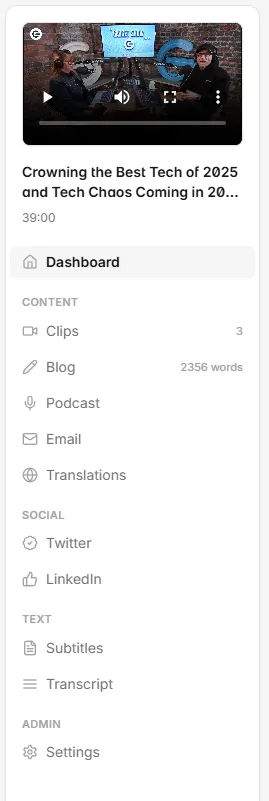
Click on any video to open its detail page. From here you can access everything Video Tap generated:
- Transcript — Full text transcription of your video
- Clips — Auto-generated and manually created clips
- Blog Posts — AI-generated blog content based on your transcript
- Social Media — Ready-to-post content for Twitter/X, LinkedIn, email, and more
- Chapters — Timestamped chapter markers
- Tags — Auto-generated topic tags
- Description — Video description and summary
Use the left sidebar to navigate between these sections.
Deleting a Video
Section titled “Deleting a Video”
To delete a video, either:
- Click on the video on your dashboard
- Go to the video’s Admin Settings
- Click Delete Video
On Video Tap’s home dashboard,
- Find the video on your dashboard
- Click the checkbox beside the video
- Click Delete
Deleting a video permanently removes:
- The uploaded video file
- All generated clips, blog posts, social content, transcripts, and chapters
- Any rendered clip files stored on our servers
Downloaded files on your computer are not affected.
Deleting a video does not refund the processing minutes used.
Re-uploading a Video
Section titled “Re-uploading a Video”Re-uploading does use minutes from your plan since it’s a new processing event. If you just need to fix the transcript or regenerate content, use Regenerate All Content instead (see Regenerating & Reprocessing Content), it’s free.
If you need to start fresh with the same video file:
- Upload the video again through Add Videos
- It will be treated as a new video and process independently
- The old version (if you haven’t deleted it) stays separate
Admin Settings (Per Video)
Section titled “Admin Settings (Per Video)”Each video has its own admin settings. To access them:
- Open the video detail page
- In the left sidebar, look for Admin
- Click Settings
Here you’ll find:
- Regenerate All Content — Reprocess the video and regenerate everything from scratch (see Regenerating & Reprocessing Content)
- Other video-specific settings depending on your plan
Refer to recording in Deleting a Video.
Folders
Section titled “Folders”If your plan supports folders, you can organize your videos into groups:
- Create folders from the dashboard
- Drag videos into folders or assign them during upload
- Use folders to separate projects, clients, or content series