
Content: Blog Posts
Video Tap turns your video’s transcript into a full, detailed blog post. No copywriting required.
How It Works
Section titled “How It Works”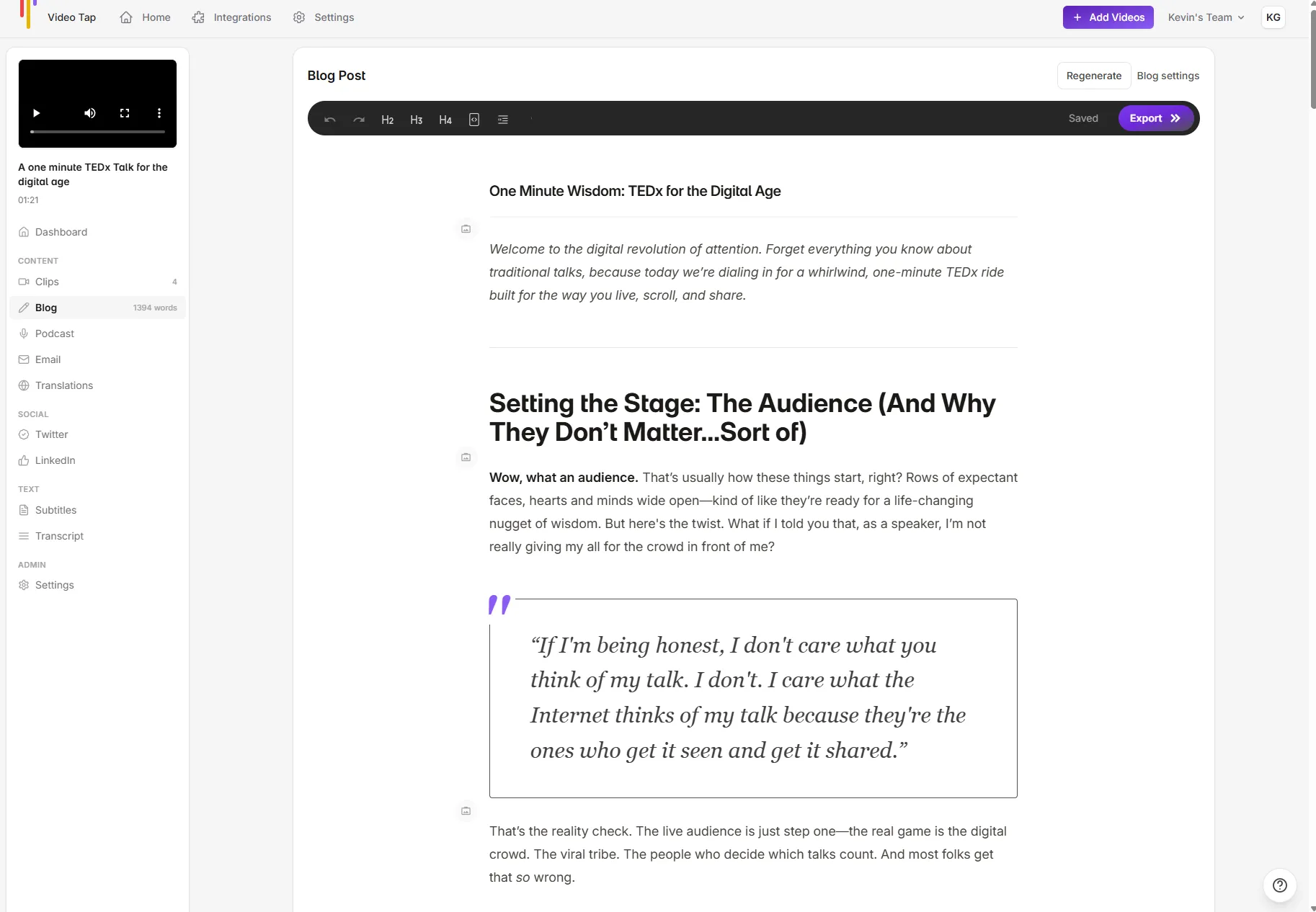
Once your video finishes processing, Video Tap’s AI reads the full transcript and writes a blog post that:
- Covers all the key topics from your video
- Matches the tone and vocabulary of the speaker
- Is organized with headings, subheadings, and a logical flow
- Runs at least 3,000 words (detailed, not thin)
- Includes placeholder spots for images
You’ll find it in the Blog section of your video page. The word count shows in the sidebar so you know how long it is.
Viewing and Editing Your Blog Post
Section titled “Viewing and Editing Your Blog Post”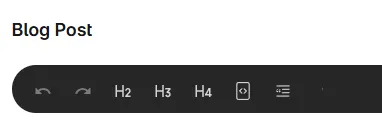
- Open your video from the dashboard
- Click Blog in the left sidebar
- Your blog post loads in a rich text editor
The editor supports full formatting:
- Headings (H1, H2, H3)
- Bold, italic
- Code blocks
- Bullet and numbered lists
- Images
You can edit the post directly in the editor. Changes save as you type.
Rewriting
Section titled “Rewriting”Not happy with the output? You can click the Regenerate option in the blog editor.
Custom Blog Prompts
Section titled “Custom Blog Prompts”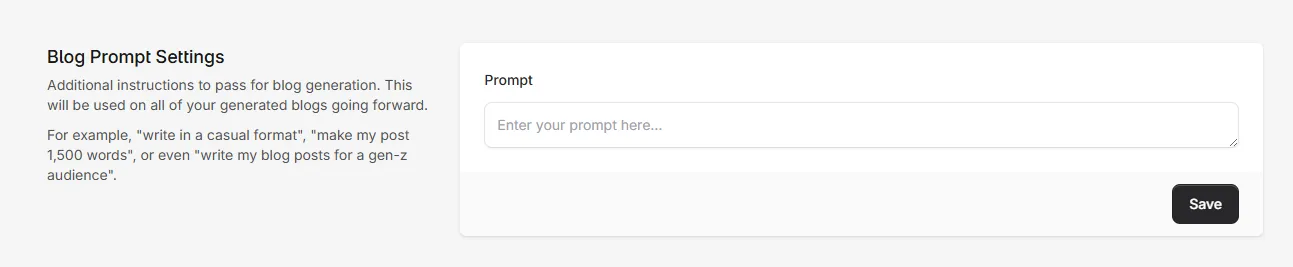
If you want every blog post to follow a certain style or format, go to Settings in the dashboard and look for Blog Prompt Settings. Whatever you put there gets included in the AI’s instructions for every blog post it generates.
Good uses for this:
- “Always include a call-to-action at the end”
- “Write for a marketing audience, not developers”
- “Keep paragraphs under 3 sentences”
Exporting Your Blog Post
Section titled “Exporting Your Blog Post”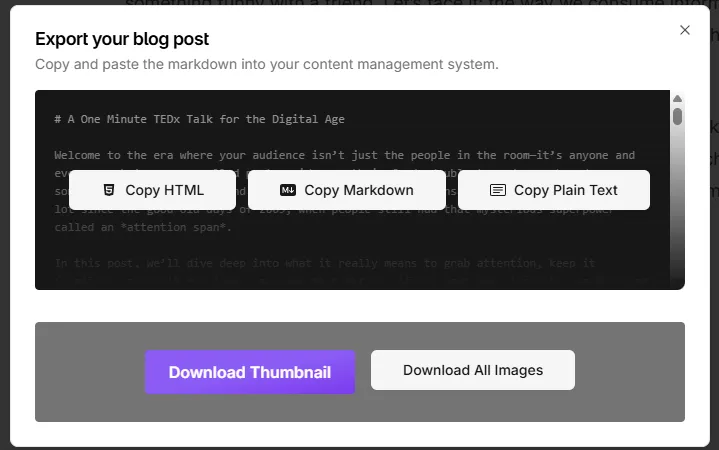
Click the export button in the editor toolbar. You can copy or download in three formats:
- Markdown for CMS platforms like WordPress, Ghost, or Notion
- HTML for pasting into email tools or websites
- Plain Text for anywhere else
You can also download the thumbnail image that was generated for the post.
Language Support
Section titled “Language Support”Blog posts are generated in the same language as your video’s transcript. If your video is in Spanish, your blog post will be in Spanish. You can also set a preferred language in Settings to override auto-detection.