
Billing: Teams and Collaboration
Teams let you share your Video Tap workspace with other people. Everyone on the team can access the same videos and content.
How Teams Work
Section titled “How Teams Work”When you create a Video Tap account, you automatically get a personal team. This is your default workspace where your videos and content live.
If you’re on a plan that supports team members (Crew or Studio), you can invite others to join.
Team Member Limits
Section titled “Team Member Limits”| Plan | Team Members |
|---|---|
| Trial, Creator | Just you (0 additional) |
| Crew | Up to 3 members |
| Studio | Up to 10 members |
Inviting Team Members
Section titled “Inviting Team Members”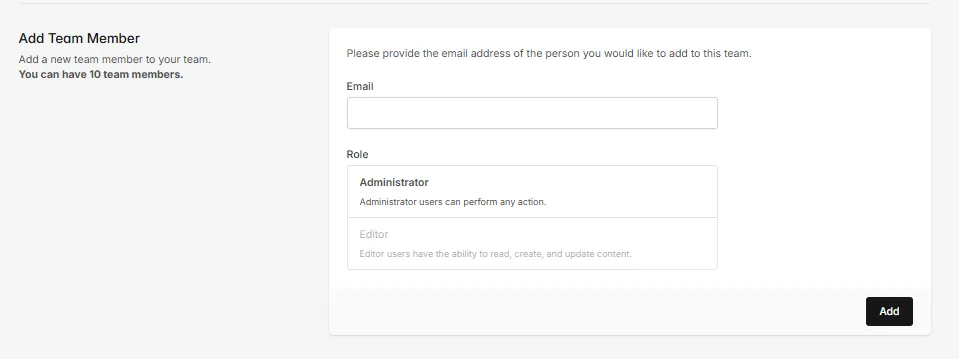
- Click your team name in the top-right corner.
- Select Manage Team.
- Find the invitation section.
- Enter the email address of the person you want to add.
- Choose their role: Admin or Editor.
- Click invite.
The person receives an email invitation. They click the link, then either sign in or create a Video Tap account. Once they accept, they’re automatically switched into your team.
- Admin: Full access to everything, including team settings and billing.
- Editor: Can view and work with all team videos and content. Can’t change team settings or billing.
Shared Resources
Section titled “Shared Resources”When someone joins your team, everyone shares:
- Video library (all uploaded videos)
- Monthly minutes (one pool for the whole team)
- Generated content (blog posts, transcripts, social posts, captions)
- Team-level settings like Custom Vocabulary, Custom Spelling, and Preferred Language
There are no per-video access controls. Everyone on the team can see and work on every video.
Removing a Member
Section titled “Removing a Member”Go to Manage Team from the team dropdown. Find the member you want to remove and click the remove option next to their name.
The member loses access immediately, but their work stays. Videos and generated content belong to the team, not the individual.
Creating Additional Teams
Section titled “Creating Additional Teams”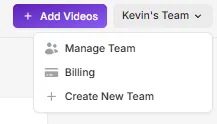
You can create more than one team. This is useful if you manage content for multiple brands or clients and want to keep things separate.
- Click your team name in the top-right corner.
- Select Create New Team.
- Name your team.
Each additional team has its own subscription, minutes, and billing. Videos in one team aren’t visible from another.
Switching Between Teams
Section titled “Switching Between Teams”If you belong to multiple teams:
- Click the team name in the top-right corner.
- You’ll see a list of all your teams.
- Click the one you want to switch to.
Your dashboard updates to show that team’s videos and usage.
Billing Ownership
Section titled “Billing Ownership”Each team has a single billing owner: the person who created it. Billing for that team is tied to their Stripe account. For inquiries about billing ownership, reach out to support@videotap.com.