
Getting Started: Your First Video
Let’s walk through uploading a video and turning it into content. The whole process takes a few minutes depending on video length.
Step 1: Start the Upload
Section titled “Step 1: Start the Upload”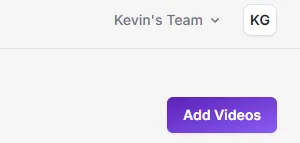
Click the purple Add Videos button in the top navigation bar. This opens the upload page.
Step 2: Add Your Video
Section titled “Step 2: Add Your Video”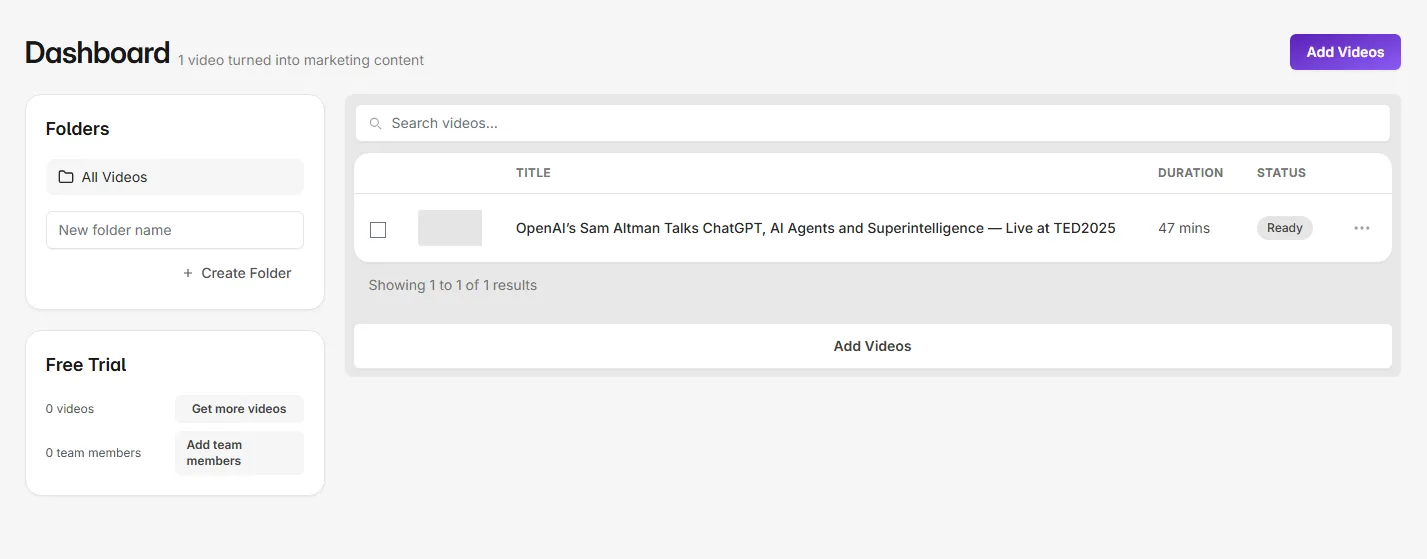
- Drag your video file into the upload area, or click to browse your computer
- Wait for the upload to finish (you’ll see a progress bar)
- The video should show up directly on your Video dashboard.
Don’t have the file? Download the source MP4 from the platform first, then upload here.
Once you add the video, it’ll show up on your dashboard and Video Tap will start processing it automatically:
- Transcribe the audio
- Generate clips
- Generate content such as blog posts, social media content, and more.
This runs in the background. You’ll get a notification when everything is ready (if you’ve turned on notifications in Settings).
Step 3: Configure Your Settings (Optional)
Section titled “Step 3: Configure Your Settings (Optional)”Before processing, you can:
- Choose a folder to organize your video
- Add vocabulary words that the transcription should know about (brand names, technical terms, etc.)
These are optional and can be set up through: https://videotap.com/dashboard/settings. You can always change them later.
Step 4: Explore Your Content
Section titled “Step 4: Explore Your Content”Once processing finishes, click on your video from the dashboard. You’ll see a sidebar with all the content types:
- Clips for short-form video highlights
- Blog for a full blog post based on your video
- Podcast for show notes
- Email for email marketing copy
- Twitter and LinkedIn for social posts
- Subtitles for SRT/VTT files
- Transcript for the full text
Click any section to view, edit, and export that content.
What to Expect
Section titled “What to Expect”Processing time depends on your video’s length. A 10-minute video typically takes a few minutes. Longer videos take proportionally longer.
All content types are generated automatically once transcription completes. You don’t need to trigger each one separately.