Clips: Reframing
Most videos are recorded in widescreen (16:9), but social media platforms use vertical (9:16), portrait (4:5), or square (1:1) formats. Reframing lets you change the aspect ratio of a clip and control how each scene is cropped.
Picking an aspect ratio
Section titled “Picking an aspect ratio”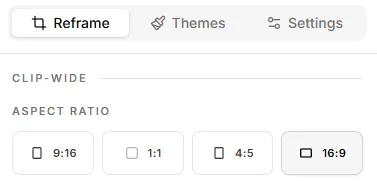
In the Reframe tab of the clip editor, the Aspect Ratio section shows four buttons:
- 9:16: TikTok, Instagram Reels, YouTube Shorts, Snapchat
- 1:1: Instagram feed, Facebook feed, LinkedIn
- 4:5: Instagram feed (takes up more vertical space than 1:1)
- 16:9: YouTube, websites, presentations, Vimeo
Click one to switch the clip’s aspect ratio. The preview updates immediately.
Per-scene layouts: Fit, Fill, Split
Section titled “Per-scene layouts: Fit, Fill, Split”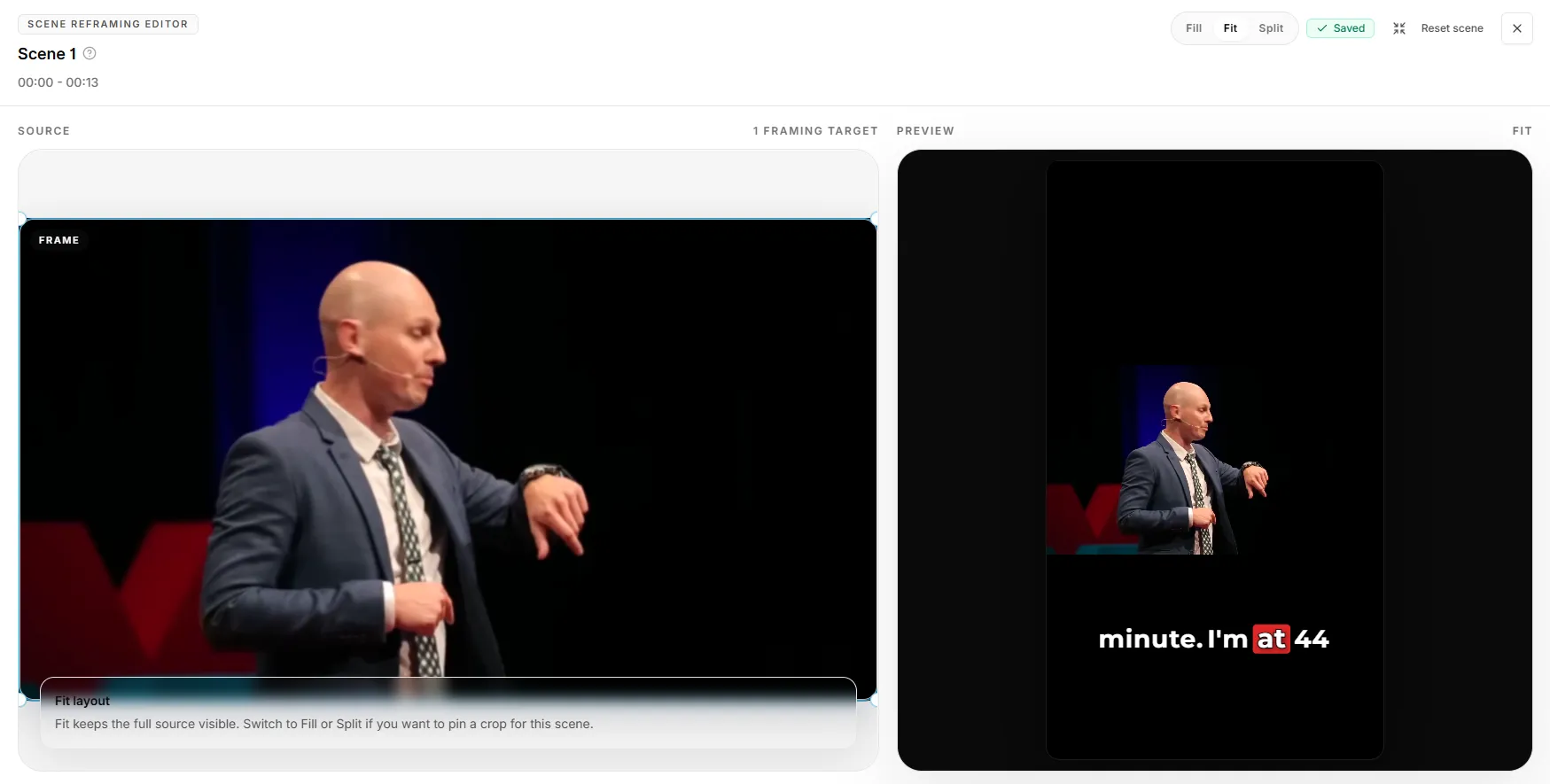
Once you’ve picked a non-16:9 aspect ratio, each scene needs a layout that controls how the original 16:9 source fits into the new frame shape.
Each scene card in the Scenes section shows its current layout (e.g., Layout: Fit). To change a scene’s layout, click Reframe on the scene card. This opens the Scene Reframing Editor.
In the editor, three buttons in the top-right control the layout:
- Fit: keeps the full source visible. Black bars appear above and below (or on the sides) to fill the gap. Best for screen recordings, presentations, or content where you need to see the whole frame.
- Fill: crops the source to fill the entire frame with no black bars. Best for talking-head content and most short-form social video.
- Split: pins a specific crop region for this scene. Best when the important content moves around the frame and you want to control exactly what’s visible.
Layout changes save automatically. You’ll see a Saved indicator next to the layout buttons.
The editor shows two panels:
- SOURCE (left): the original frame with a draggable FRAME box for pinning the crop position. In Fill or Split modes, drag the box to choose what’s visible in the rendered output.
- PREVIEW (right): how the rendered output will look in the new aspect ratio.
Smart Reframe
Section titled “Smart Reframe”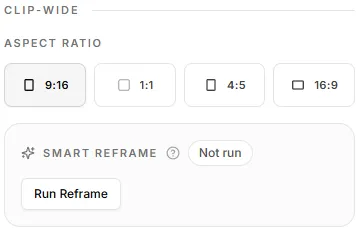
If you don’t want to set Fill scene-by-scene, Smart Reframe does it for you. It analyzes each scene and picks the best Fill crop automatically.
In the Smart Reframe section, click Switch to 9:16 or 1:1. This sets the aspect ratio and runs Smart Reframe in one step. It’s the fastest path to “make this clip vertical with no black bars.”
Smart Reframe is the recommended path for talking-head, podcast, or interview content where the speaker is consistently in frame.
Getting Shorts to fill the screen
Section titled “Getting Shorts to fill the screen”Fastest path (Smart Reframe):
- In the Reframe sidebar, click Switch to 9:16 or 1:1 under Smart Reframe
- Pick 9:16
- Wait for analysis to complete
- Render
Manual control (per scene):
- Click 9:16 in the Aspect Ratio buttons
- For each scene card, click Reframe
- In the Scene Reframing Editor, click Fill in the top-right
- (Optional) Drag the FRAME box in the SOURCE panel to pin the crop
- Close the editor; repeat for the next scene
- Render
Troubleshooting
Section titled “Troubleshooting””My vertical clip still has black bars”
Section titled “”My vertical clip still has black bars””The clip’s aspect ratio is 9:16 but one or more scenes are set to Fit (the default). Either run Smart Reframe → Switch to 9:16 to auto-set Fill across scenes, or open each scene’s Reframe button and switch to Fill.
”The rendered clip looks different from the preview”
Section titled “”The rendered clip looks different from the preview””The Scene Reframing Editor’s PREVIEW pane should match the export. If they don’t match:
- Confirm the layout is Saved (the green check next to the layout buttons)
- Re-render the clip
If it still doesn’t match, contact support@videotap.com with a screenshot of your preview and the downloaded clip.
”The crop is cutting off the wrong part”
Section titled “”The crop is cutting off the wrong part””Open the scene in the Scene Reframing Editor. Switch to Fill or Split, then drag the FRAME box in the SOURCE panel until your subject is centered.
Things to keep in mind
Section titled “Things to keep in mind”- Layouts are per-scene, not per-clip. A long clip can have different layouts for different sections (e.g., Fill during a talking-head segment, Fit during a screen-share).
- Smart Reframe sets Fill, not Fit or Split. If you need to mix layouts, do it manually after Smart Reframe runs.
- Aspect ratio affects caption position. Captions reposition automatically when you change aspect ratios; double-check the preview before rendering.