
Content: Social Media
Video Tap generates ready-to-post content for Twitter/X and LinkedIn from every video you process.
Twitter/X Posts
Section titled “Twitter/X Posts”Video Tap creates 7 tweets per video, each with a different emotional angle:
- Humorous (the LOL moment)
- Insightful (the aha moment)
- Surprising (the wow moment)
- Heartwarming (the feel-good moment)
- Positive (the celebratory moment)
- Controversial (the hot take)
- Validating (the “finally someone said it” moment)
Each tweet is written in the same tone as the original video.
Viewing Your Tweets
Section titled “Viewing Your Tweets”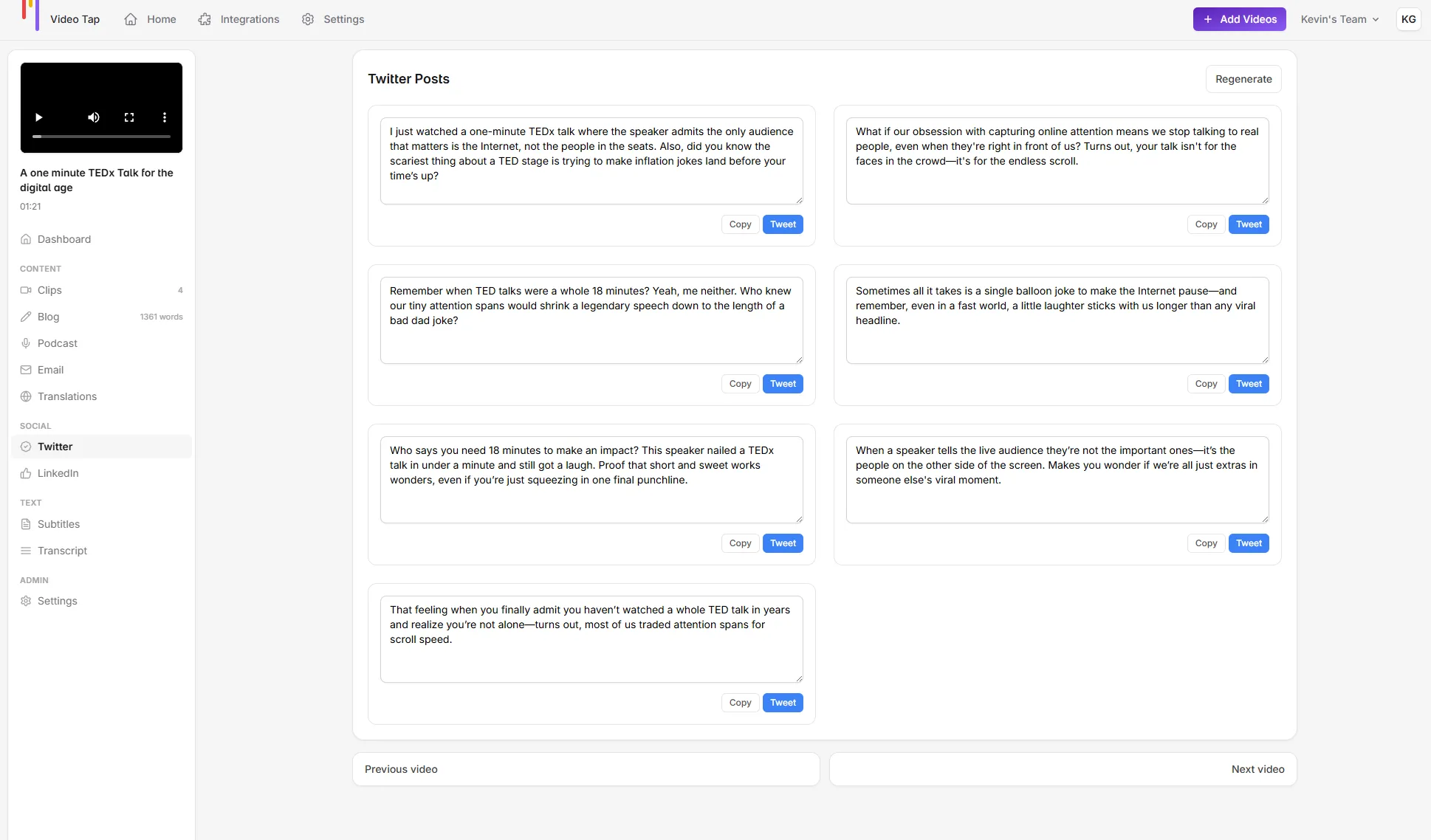
- Open your video from the dashboard
- Click Twitter in the left sidebar
- Browse through the 7 generated tweets
- Copy any tweet with one click
LinkedIn Posts
Section titled “LinkedIn Posts”Video Tap generates 5 LinkedIn posts per video. These are formatted for professional audiences:
- Short, attention-grabbing opening line
- 1-2 sentences of main content
- No hashtags or emojis
- Written to encourage comments and discussion
- Pulls specific examples from your video
Viewing Your LinkedIn Content
Section titled “Viewing Your LinkedIn Content”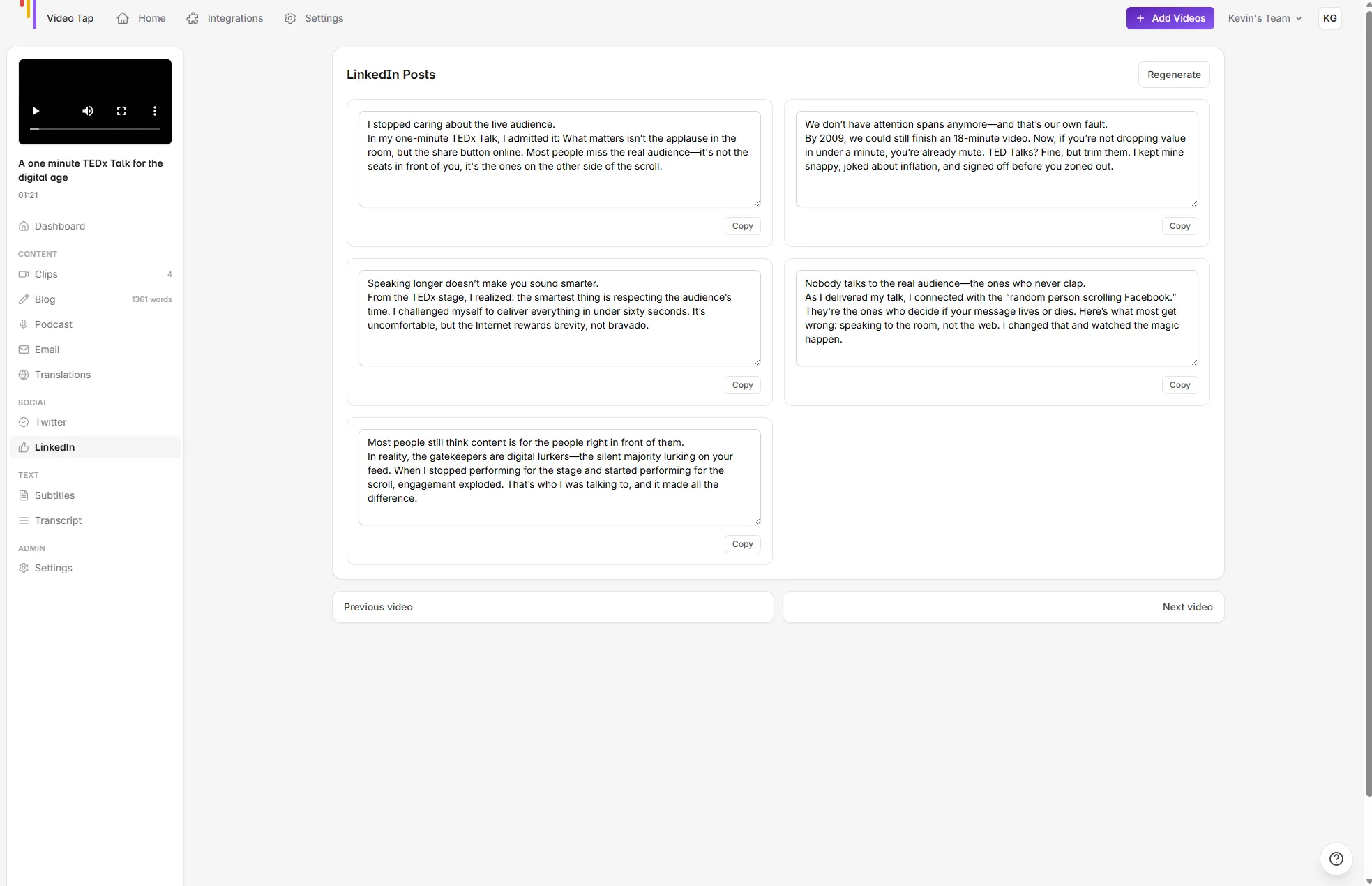
- Open your video from the dashboard
- Click LinkedIn in the left sidebar
- Browse and copy the posts you like
Social Media Content for Clips
Section titled “Social Media Content for Clips”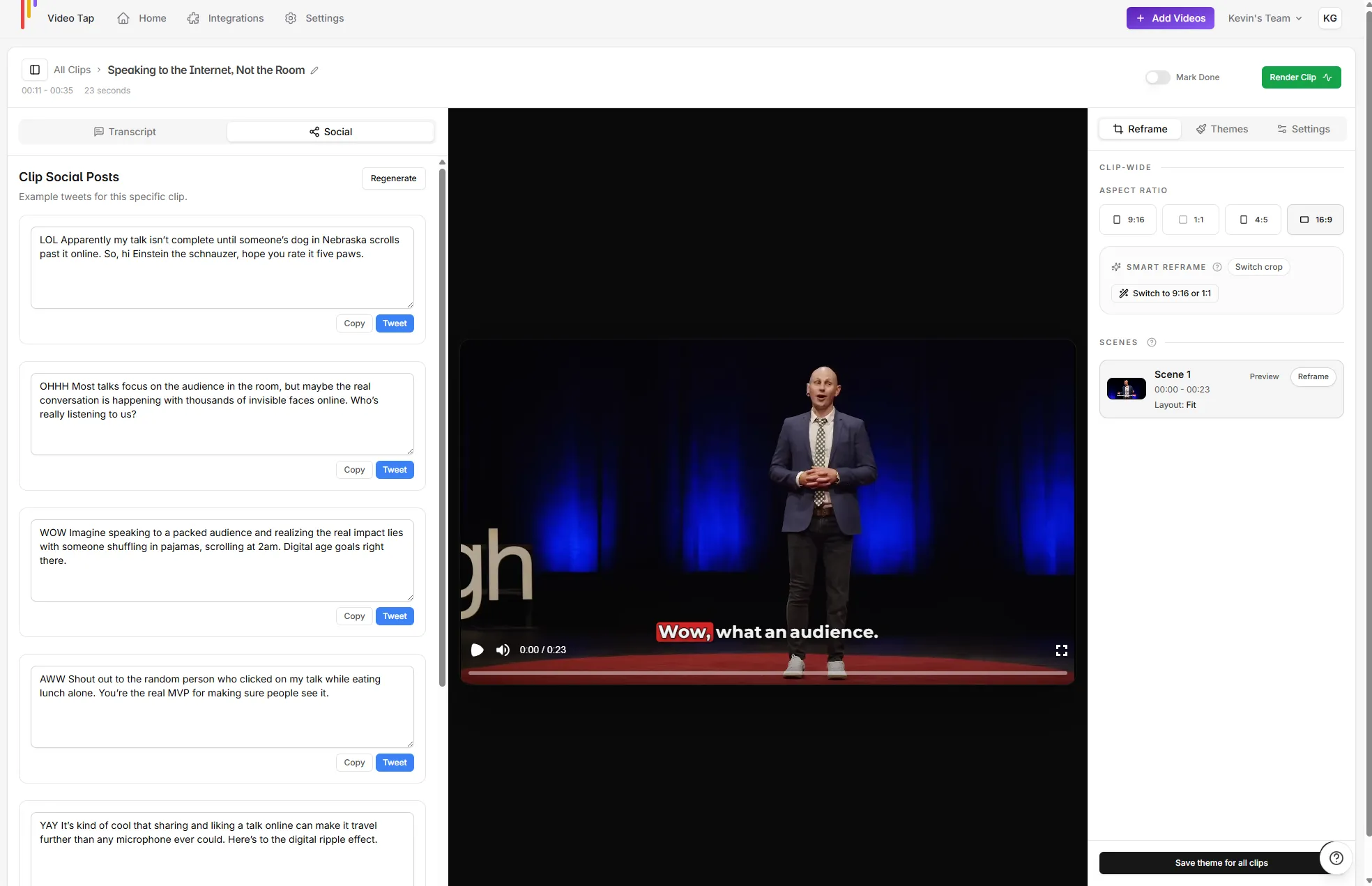
Each individual clip also gets its own social media copy. When you’re in the clip editor:
- Click the Social media tab in the left panel
- You’ll see tweets generated specifically for that clip
- Copy and pair them with the clip video when you post
Email Marketing Content
Section titled “Email Marketing Content”Video Tap also generates email-ready content:
- 5 subject lines (under 50 characters each, designed to get opens)
- 5 email blurbs (2-3 sentence teasers you can use in newsletters)
Each subject line is designed to spark curiosity without being clickbait. The blurbs work as email teasers, newsletter snippets, or promotional copy. You can edit any of them directly in the editor.
Find these in the Email section of your video page.
Other Content Types
Section titled “Other Content Types”Beyond social media, each video also generates:
Podcast Show Notes
Section titled “Podcast Show Notes”A structured document (1,500+ words) with:
- Episode summary
- Key takeaways
- Notable quotes with timestamps
- Detailed breakdown
- Social media highlights
Find this in the Podcast section of your video page.
YouTube Description
Section titled “YouTube Description”A short, SEO-friendly description (under 150 characters) you can paste into YouTube’s description field. If you’ve set up a default YouTube description template in Settings, it gets appended automatically.
YouTube Tags
Section titled “YouTube Tags”10-15 keyword tags optimized for YouTube search. You can edit, add, or remove tags after generation. Tags are editable right from the video’s dashboard page.
YouTube Chapters
Section titled “YouTube Chapters”Timestamped chapter markers in YouTube’s format (e.g., “00:00 Introduction”). Copy and paste them into your YouTube description to give viewers a clickable table of contents. Chapters are generated based on major topic shifts in your transcript, with 2-3 word titles.
Video Summary
Section titled “Video Summary”A structured overview of your video organized by topic, with key points under each heading.
Meta Description
Section titled “Meta Description”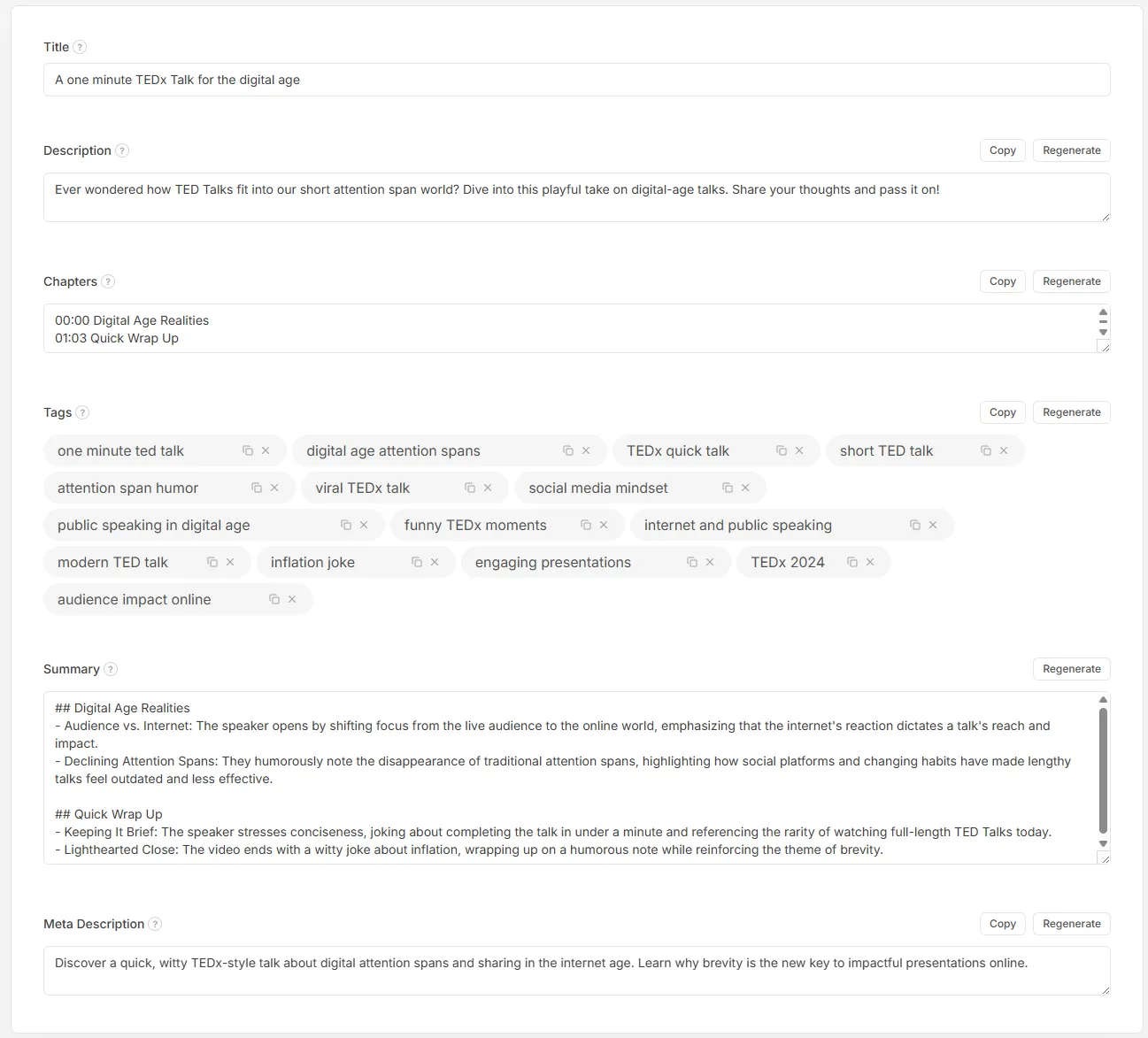
An SEO-optimized description (under 160 characters) for use on websites, blog posts, or anywhere you need a concise summary.
All of these content types are found on the main Dashboard tab when you open a video. They’re displayed alongside the video title, so you can quickly copy and paste them wherever you need them.
Regenerating Content
Section titled “Regenerating Content”If any of the generated content doesn’t hit right, you can regenerate it. Look for a regenerate or rewrite button in each content section.