
Billing: Managing Your Subscription
All subscription management (payment methods, invoices, plan changes) happens through the billing portal.
Accessing the Billing Portal
Section titled “Accessing the Billing Portal”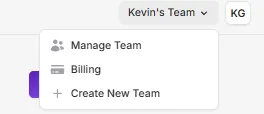
- Click your team name in the top-right corner of the dashboard
- Select Billing from the dropdown
- You’ll be taken to the Stripe billing portal
From there you can:
- Update your credit card or payment method
- View and download past invoices
- Change your plan
- Switch between monthly and annual billing
- Cancel your subscription
Changing Your Plan
Section titled “Changing Your Plan”Upgrading
Section titled “Upgrading”- Go to the Pricing page (or click Upgrade from the dashboard)
- Pick your new plan
- Click the plan’s button to switch
When you upgrade mid-cycle, you’ll be charged a prorated amount for the rest of the current billing period. Your new features and limits kick in immediately.
Downgrading
Section titled “Downgrading”Same process as upgrading. Go to the Pricing page, pick the lower plan, and confirm. The change takes effect right away, and you’ll receive a prorated credit on your next invoice.
Switching Between Monthly and Annual
Section titled “Switching Between Monthly and Annual”On the Pricing page, toggle between Monthly and Annual at the top. Annual billing saves you 2 months per year. When you switch, the billing difference is prorated.
Checking Your Usage
Section titled “Checking Your Usage”Your current usage shows in the left sidebar of the dashboard:
- Minutes used out of your monthly total
- Minutes remaining until your next reset
Minutes reset at the start of each billing cycle (the date you originally subscribed).
For AppSumo customers, minutes reset every 30 days.
Coupon Codes
Section titled “Coupon Codes”If you have a coupon code, you can apply it during checkout. Video Tap has offered promotions like:
- Percentage discounts on your first months
- Free months added to your subscription
Enter the code on the checkout page before completing payment.
Invoices and Receipts
Section titled “Invoices and Receipts”All invoices are available in the Stripe billing portal. Click Billing from the team dropdown to access them. Each invoice includes:
- Amount charged
- Plan details
- Payment method used
- Date