Clips: Editing Transcriptions
The captions on your clips come directly from the transcription. If a word is wrong or you want to tweak the text, you can edit it right inside the clip editor.
How to Edit Words
Section titled “How to Edit Words”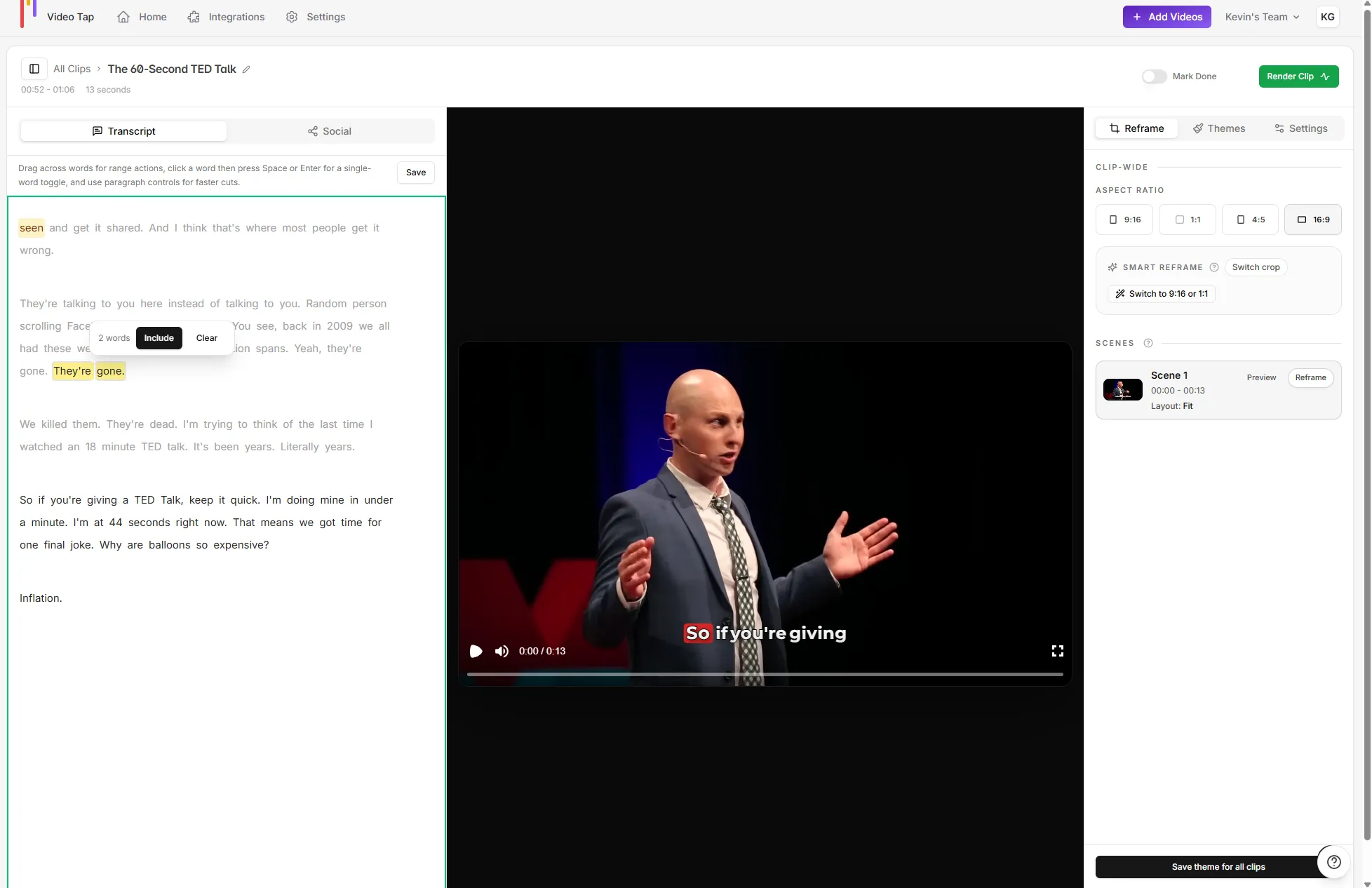
- Open any clip from the Clips section
- Click Edit Transcript in the editor
- Each word becomes editable. Click on any word to change it.
- Type your correction and click away (or press Tab) to save
Your changes are saved automatically. The updated text will show in the clip preview and in the final rendered video.
What You Can Edit
Section titled “What You Can Edit”- Fix misheard words. The transcription is good but not perfect, especially with names, jargon, or accents.
- Correct spelling. Brand names and technical terms might be spelled wrong.
- Clean up filler words. Remove “um,” “uh,” or repeated words if you want cleaner captions.
Tips for Better Transcriptions
Section titled “Tips for Better Transcriptions”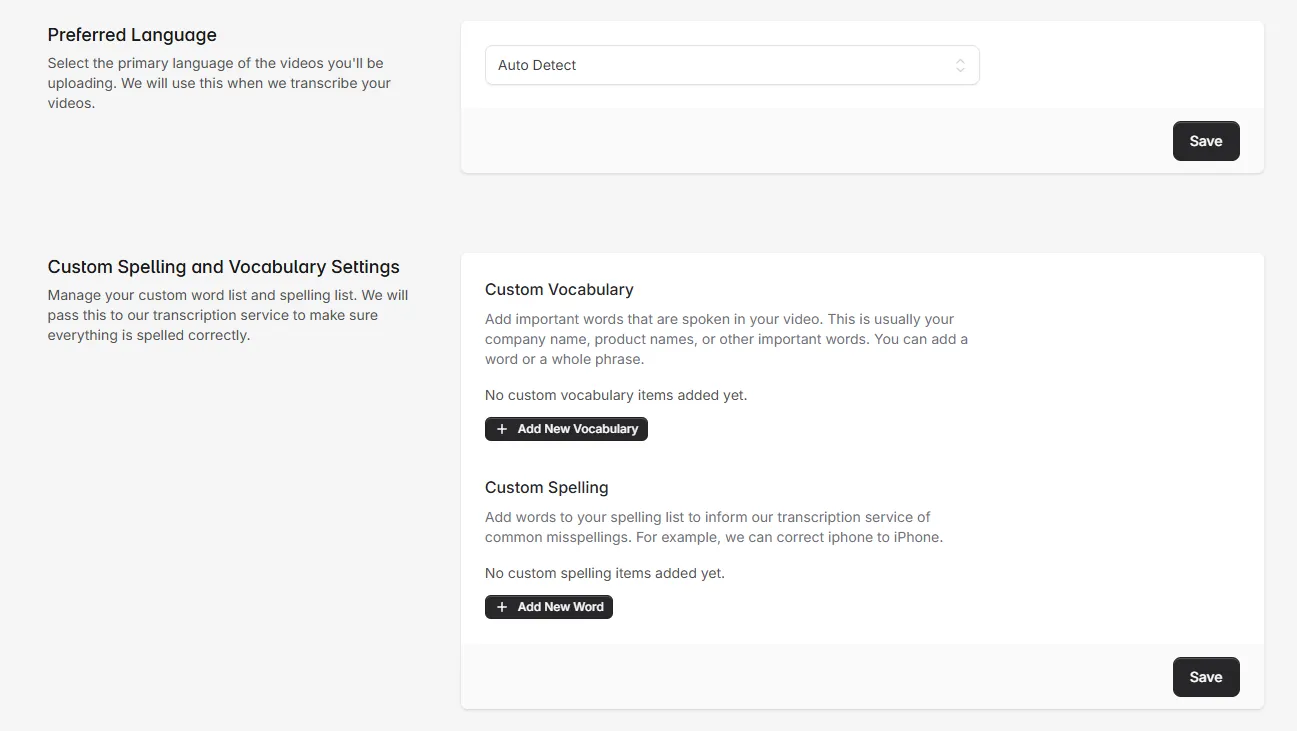
Set up vocabulary before processing. On the Add Videos page, there’s a Vocabulary field where you can enter words the transcription should know. This is the best way to make sure brand names and technical terms are transcribed correctly the first time.
You can also set a preferred language in Settings if your videos aren’t in English. This tells the transcription engine what to expect instead of relying on auto-detection.
Editing the Full Video Transcript
Section titled “Editing the Full Video Transcript”The clip transcript is pulled from the main video transcript. If you want to fix words across all clips at once:
- Go to the Transcript section of your video (in the left sidebar under Text > Transcript)
- Click Edit Transcript
- Use Find and Replace to fix recurring errors across the entire transcript
- Save your changes
Changes to the main transcript will be reflected in clips that use those words.
Where Can I Edit Transcripts?
Section titled “Where Can I Edit Transcripts?”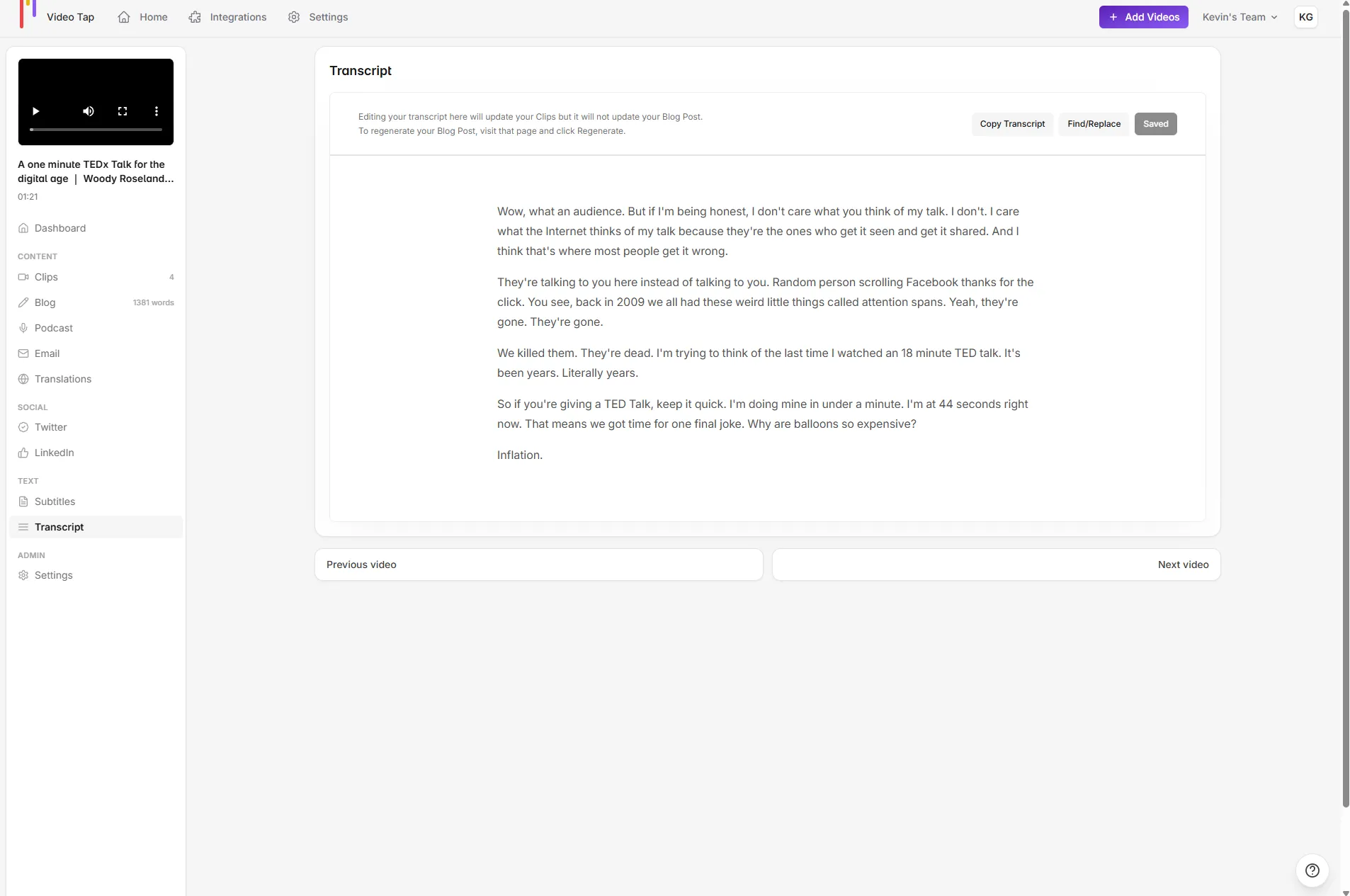
Two places let you edit transcript text:
- Main transcript page: On the video detail page, go to the left sidebar and click Text > Transcript. This shows the full transcript for the entire video.
- Clip editor: When you’re editing a specific clip, the transcript section shows just the text for that clip’s time range. You can edit words here too.
Edits in either location are saved. If you edit a word on the main transcript page, it updates in any clips that include that section.
Clicking Words vs Editing Words
Section titled “Clicking Words vs Editing Words”This is important to understand because the transcript editor has two different interactions:
- Clicking words in the clip view toggles whether that word is included in or excluded from the clip selection. This is how you select which parts of the transcript become a clip.
- Editing words (when in Edit Transcript mode) lets you change the actual text content.
These are different actions. If you’re trying to fix a misspelled word but instead the text is getting highlighted/selected, make sure you’ve clicked Edit Transcript first to enter editing mode.
Custom Spelling Corrections
Section titled “Custom Spelling Corrections”If you find yourself fixing the same words over and over across different videos, you can set up custom spelling corrections at the team level in Settings. These apply automatically to every new transcription.
What Happens After You Edit
Section titled “What Happens After You Edit”- Your edits are saved automatically and persist across sessions
- Edited text appears in clip captions, blog posts, and social content that references that section
- If you need a completely fresh transcript, you can use Regenerate All Content (see the Video Management section), but this will wipe all your manual edits across the entire video
- Edits do not affect the original audio or video file
Common Transcription Issues
Section titled “Common Transcription Issues”- Names and brand terms: The AI might transcribe a brand name like “Wirecutter” as “wire cutter.” Use the vocabulary setting to prevent this.
- Technical jargon: Industry-specific terms may be misheard. Edit them in the transcript or add them to your vocabulary.
- Heavy accents or fast speech: The transcription does its best, but you may need to manually correct some words.
- Background noise or music: This can cause missed or incorrect words. Videos with clean audio produce much better transcriptions.
- Multiple speakers talking over each other: Overlapping speech is harder to transcribe. The result may merge or miss some words.