
Content: The Video Detail Page
When you click on a video from your dashboard, you land on its detail page. This is where all your generated content lives and where you do most of your work.
Page Layout
Section titled “Page Layout”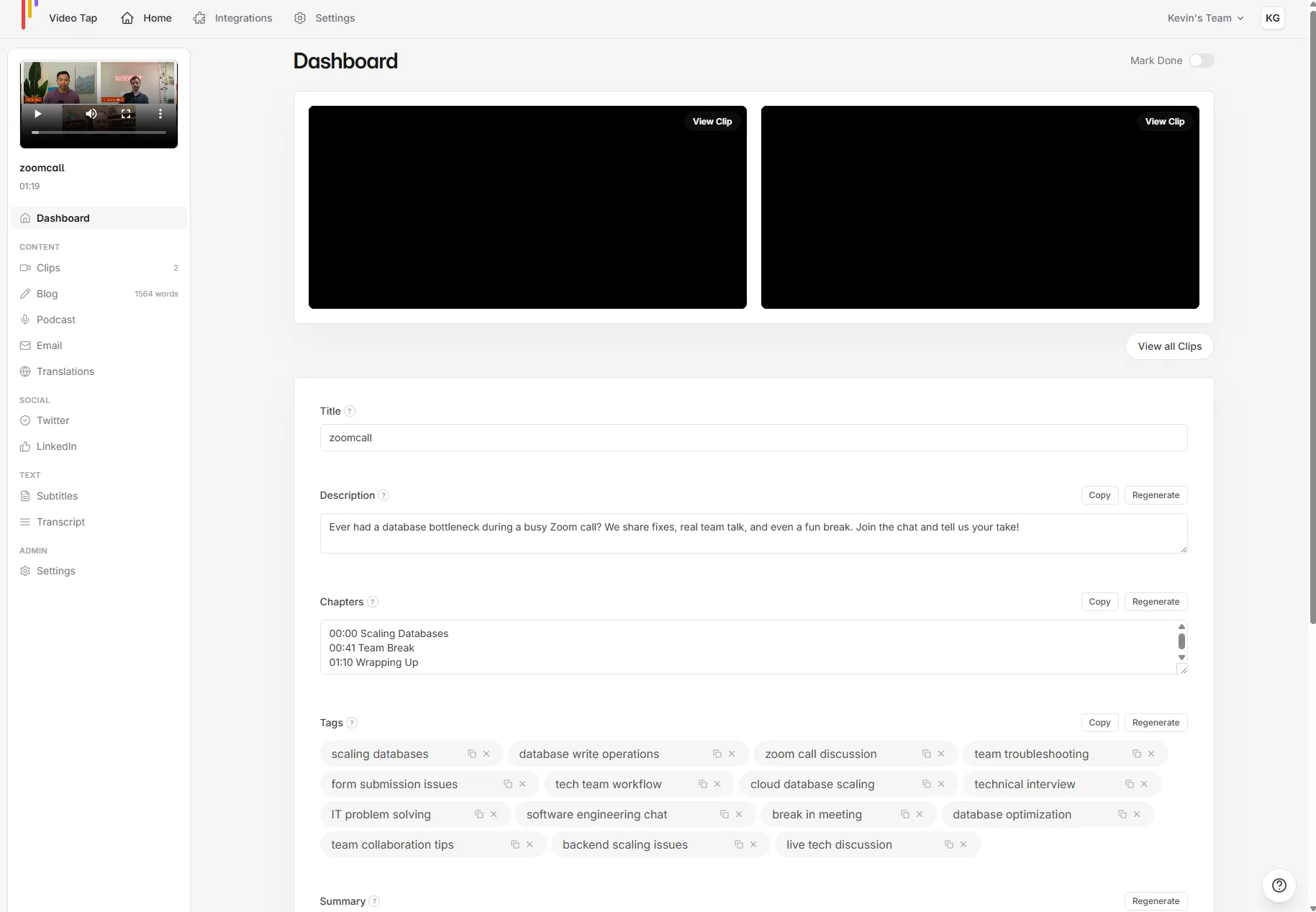
The page has two main areas:
Left sidebar (sticky):
- A small video preview player
- Your video’s title and duration
- If the video came from YouTube or Vimeo, a link to the original
- Navigation menu to switch between content sections
Main content area:
- Shows whichever section you’ve selected from the sidebar
Sidebar Navigation
Section titled “Sidebar Navigation”The sidebar organizes content into groups:
Dashboard
Section titled “Dashboard”The default view when you open a video. Shows:
- Title (editable, with a tooltip: “One of the first things people see about your video. Make it engaging and draw users in.”)
- YouTube Description (a short, SEO-friendly blurb you can paste into YouTube)
- Chapters (timestamped chapter markers in YouTube format, like “00:00 Introduction”)
- Tags (10-15 SEO keyword tags, editable, with add/remove controls)
- Summary (a structured overview organized by topic)
- Meta Description (under 160 characters, optimized for search engines)
Each section has a regenerate button if you want a fresh version.
Content
Section titled “Content”- Clips - Your short-form video highlights
- Blog - A full blog post with word count badge
- Podcast - Show notes with episode summary, key takeaways, notable quotes with timestamps, and a detailed breakdown (1,500+ words)
- Email - 5 subject lines and 5 email blurbs for newsletters and promotions
- Translations - Translate your blog post into 120+ languages
Social
Section titled “Social”- Twitter - 7 tweets with different emotional angles
- LinkedIn - 5 professional posts designed for engagement
- Subtitles - Download VTT or SRT subtitle files
- Transcript - The full transcript with editing and Find & Replace
Settings (per-video)
Section titled “Settings (per-video)”- Change the video’s transcription language
- Delete the video
Working with Each Section
Section titled “Working with Each Section”Most content sections follow the same pattern:
- View the generated content
- Edit it directly in the browser (changes save automatically in most sections)
- Regenerate if you want a fresh version
- Copy or download when you’re ready to use it
You don’t need to generate each content type separately. Everything is created automatically when your video finishes processing. Just click through the sidebar to find what you need.
Processing States
Section titled “Processing States”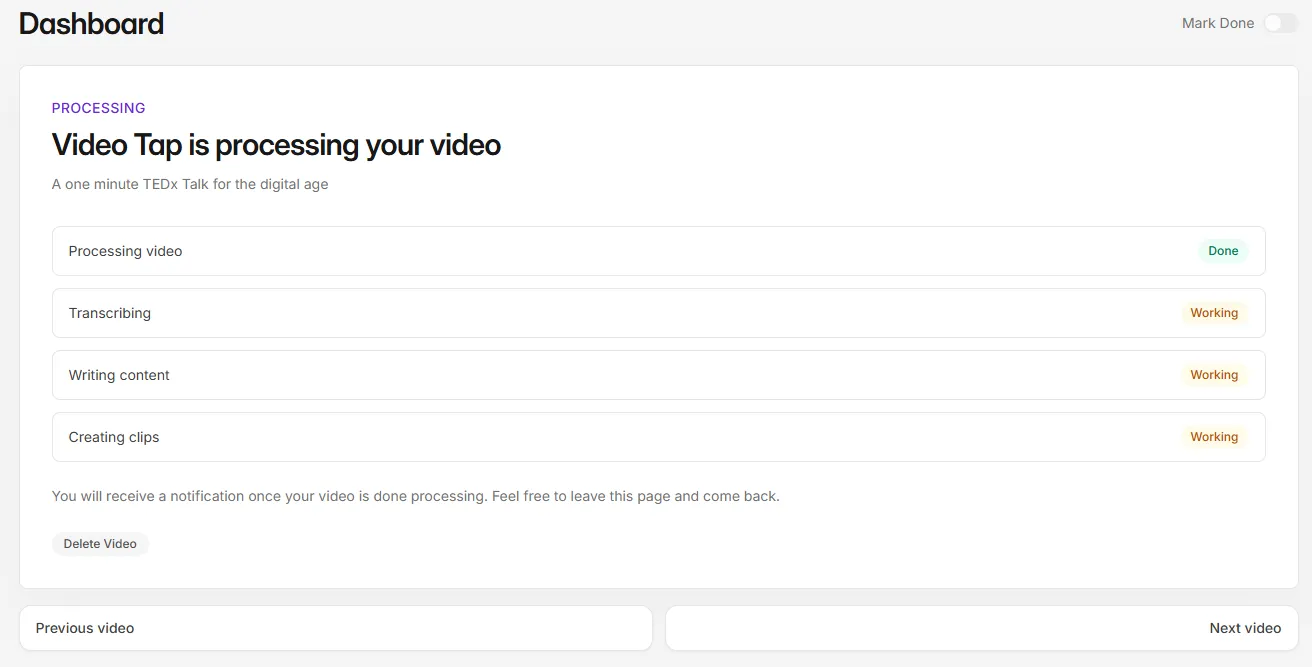
If processing gets stuck or fails, you’ll see options to Retry Processing, Restart Transcription, or Delete Video.