
Getting Started: Settings and Integrations
VideoTap has two configuration pages: Settings (for how your content is generated) and Integrations (for connecting external services). Both are in the top navigation bar.
Settings
Section titled “Settings”Notify on Ready
Section titled “Notify on Ready”Turn this on to get notified when your video finishes processing. The notification goes to the team owner’s email. Helpful when you’re processing longer videos and don’t want to keep checking back.
Preferred Language
Section titled “Preferred Language”Select the primary language of the videos you upload. VideoTap uses this when transcribing your videos instead of auto-detecting the language.
Why this matters: Auto-detection usually works, but it can guess wrong with accented speech, bilingual speakers, or videos with background music. Setting your preferred language prevents these issues.
Custom Vocabulary
Section titled “Custom Vocabulary”Add important words that come up in your videos. This tells the transcription engine to listen for them specifically.
Good candidates:
- Your company or product name
- People’s names
- Industry-specific terms
- Acronyms or abbreviations
Spelling Corrections
Section titled “Spelling Corrections”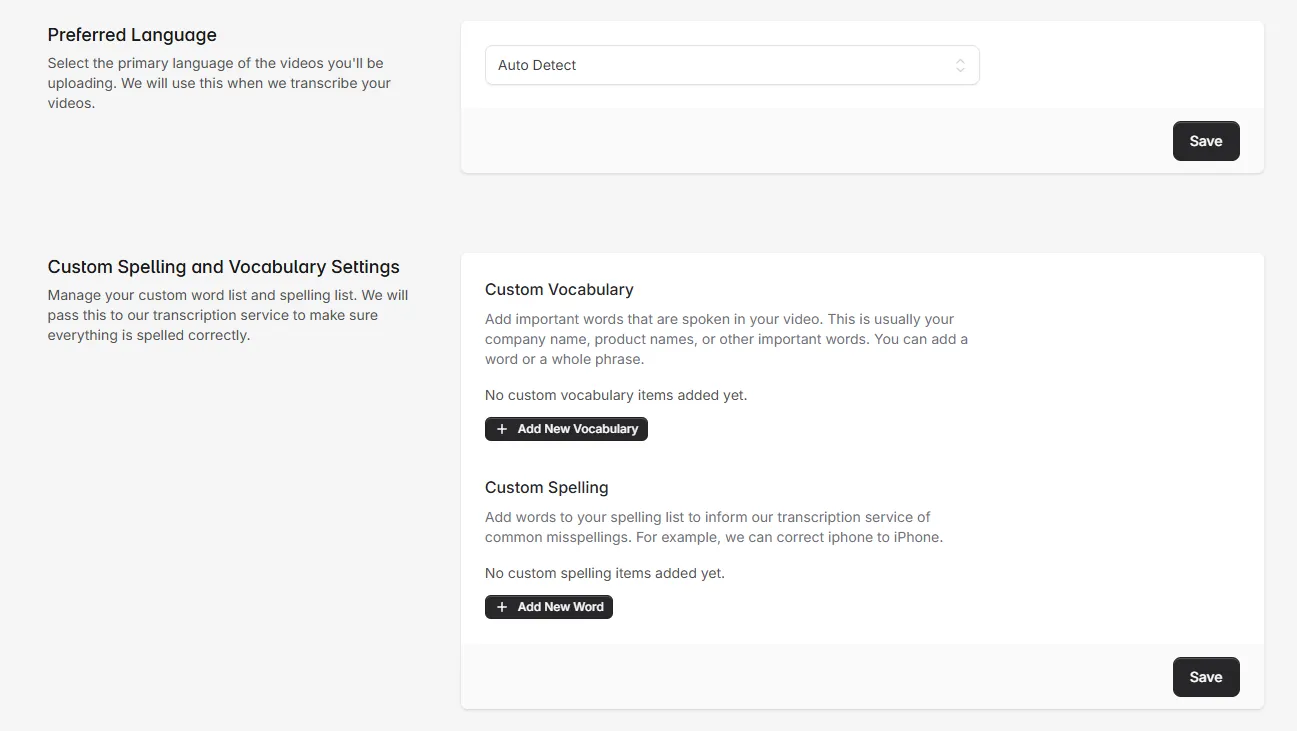
Separate from vocabulary, you can set up automatic spelling corrections. For example, you can tell Video Tap that whenever it hears “iphone” it should write “iPhone,” or that “videotap” should be “Video Tap”.
These corrections apply to every new transcription and subtitle file your team generates.
Blog Prompt Settings
Section titled “Blog Prompt Settings”Add custom instructions that apply to every blog post Video Tap generates. This is a text field where you can write things like:
- “Write in a casual, conversational tone”
- “Keep posts under 2,000 words”
- “Always include a call-to-action at the end”
- “Write for a technical audience”
Whatever you put here gets included in the AI’s instructions for all future blog posts.
YouTube Description Settings
Section titled “YouTube Description Settings”Set a default template for YouTube descriptions. This text gets appended to every YouTube description that Video Tap generates, so you can include standard links, disclaimers, or channel info without retyping it each time.
Integrations
Section titled “Integrations”YouTube
Section titled “YouTube”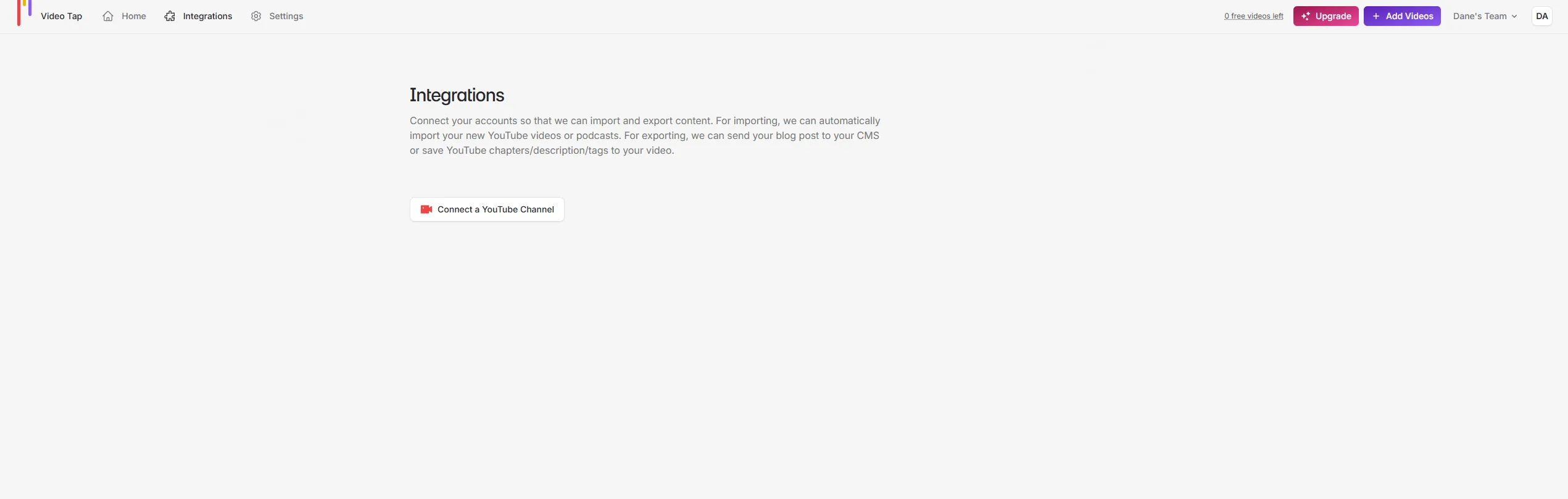
The main integration currently available. Connecting your YouTube account lets you:
- See your channel’s videos and import them directly into VideoTap (no need to paste URLs one at a time)
- Automatically import new YouTube videos as they’re published
To connect:
- Go to Integrations in the top navigation
- Click the YouTube connect button
- Sign in with Google and authorize VideoTap