Clips: Subtitle & Caption Styling
Your clips come with auto-generated captions that you can fully customize before rendering. This page covers everything about how subtitles look and where they appear on screen.
Caption Themes
Section titled “Caption Themes”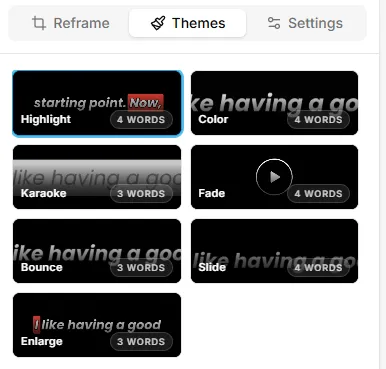
Video Tap includes 7 pre-built caption themes. You’ll find these under the Themes tab in the clip editor’s right sidebar. Each theme button shows a looping preview so you can see the effect before applying it.
- Highlight (default): Word-by-word highlight with a colored background.
- Color: White text on a dark semi-transparent background, with an italic style.
- Karaoke: Dark text on a white background with a karaoke-style color reveal.
- Fade: Text fades in and out with a fine stroke outline.
- Bounce: Text bounces in with a clean white look.
- Slide: Text slides in with a thick stroke outline.
- Enlarge: Each word smoothly scales up as it’s spoken.
Caption Position
Section titled “Caption Position”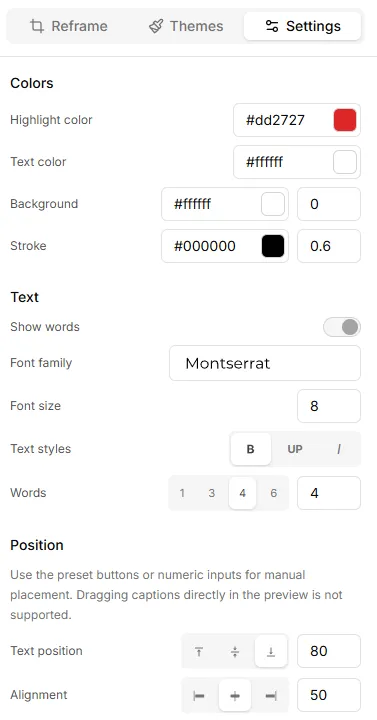
Under the Settings tab in the right sidebar, you can control exactly where your captions appear on screen.
Vertical Position
Section titled “Vertical Position”The vertical position is set with a number value that controls how far down the frame your captions sit:
- Lower numbers (e.g., 10-20) place captions near the top of the frame
- Middle values (e.g., 40-60) place captions in the center
- Higher numbers (e.g., 80-95) place captions near the bottom
You can type in any number to fine-tune the exact placement. This isn’t limited to just top, center, or bottom; you have full control over the vertical position.
Horizontal Alignment
Section titled “Horizontal Alignment”Captions can be aligned left, center, or right within the frame. Center is the default and works best for most social media content.
Font Options
Section titled “Font Options”Video Tap offers 22 font families across these categories:
- Sans-serif (12): Fira Sans, Inter, Lato, Montserrat, Nunito Sans, Open Sans, Oswald, Poppins, Raleway, Roboto, Ubuntu, Work Sans. Clean and modern, great for social media.
- Serif (5): Bitter, Libre Baskerville, Lora, Merriweather, Playfair Display. Elegant and editorial.
- Slab serif (2): Roboto Slab, Zilla Slab. Sturdy and editorial.
- Display (1): Abril Fatface. Eye-catching for titles.
- Monospace (1): Roboto Mono. Technical or retro vibes.
- Handwriting (1): Dancing Script. Casual and personal.
You can also adjust font size and toggle bold or italic styling.
Color Customization
Section titled “Color Customization”Four color settings let you dial in exactly the look you want:
- Highlight color: The color that sweeps across words as they’re spoken (in themes that use highlighting)
- Text color: The main color of the caption text
- Background color: A color bar or box behind the text (set to transparent if you don’t want one)
- Stroke (outline) color: An outline around each letter, useful for readability over busy backgrounds
Click any color swatch to open a color picker where you can enter exact hex values for brand-accurate colors.
Words per caption
Section titled “Words per caption”The Words setting controls how many words appear on screen at once. The default is 6. Quick presets are available for 1, 3, 4, 6, and you can type any value between 1 and 12 for finer control.
Lower numbers mean more frequent text changes but less visual clutter, which works well for fast-paced short-form content. Higher numbers (toward 12) give a denser, more book-like read that suits longer or more relaxed videos.
Save Your Brand Preset
Section titled “Save Your Brand Preset”Once you’ve dialed in a look you like (font, colors, position, theme), click Save theme for all clips at the bottom of the settings panel. This saves your entire caption style and applies it automatically to every new clip on your account.
This is especially useful if you’re creating content for a brand or channel and want a consistent look across all your clips without re-configuring each time.
Good to Know
Section titled “Good to Know”- Captions are burned in. They’re rendered directly into the video file, not as a separate subtitle track. This means they’ll show up everywhere your video plays.
- Changing aspect ratio can shift captions. If you switch between 16:9, 9:16, and 1:1, double-check that your caption position still looks right in the preview.
- SRT/VTT downloads are separate. If you need subtitle files for platforms that support them, you can download those from the Transcriptions page. They’re independent of the burned-in captions.