
Getting Started: Dashboard Overview
The dashboard is home base. Every time you log in, this is where you land.
What You’ll See
Section titled “What You’ll See”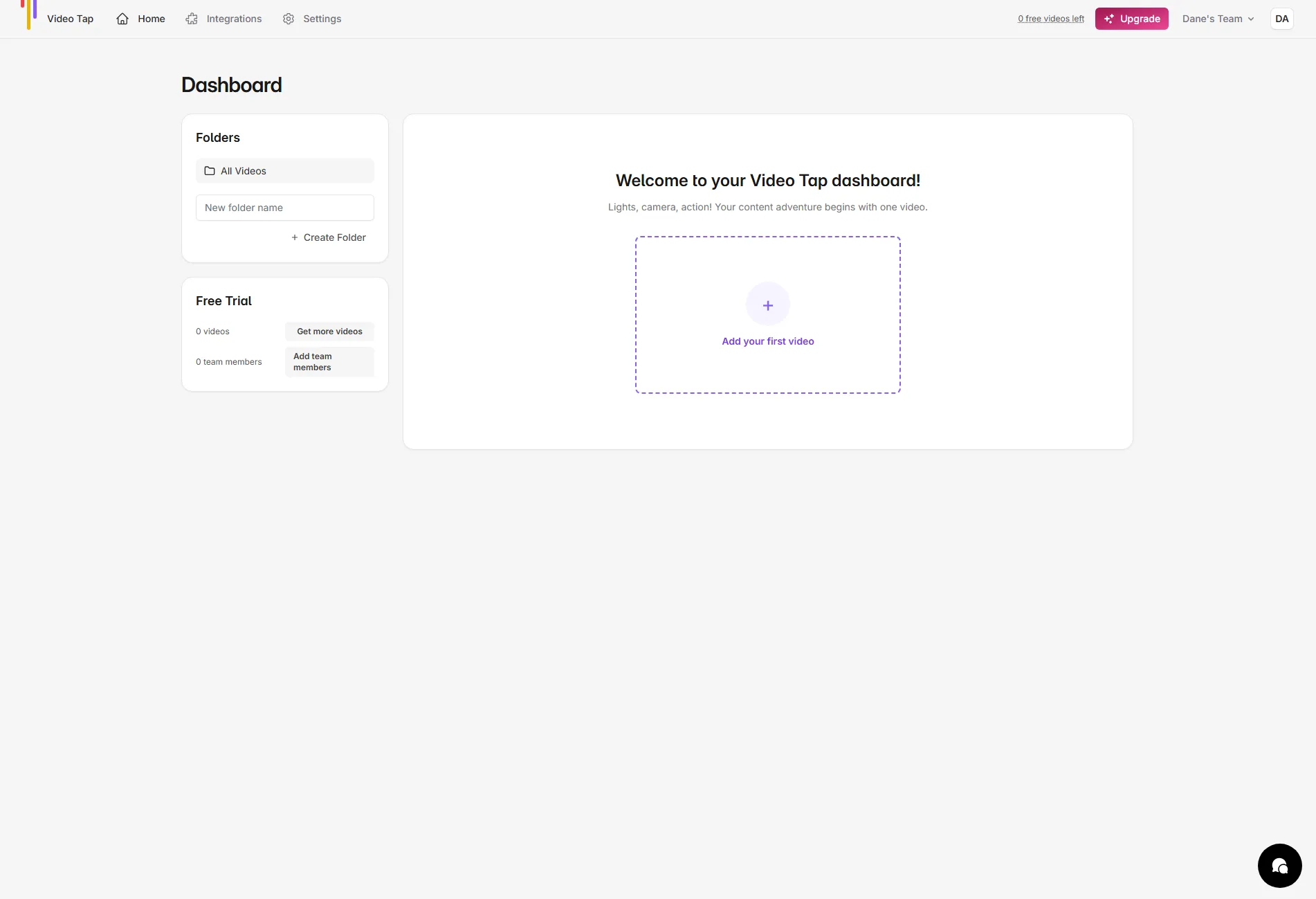
Top Navigation Bar
Section titled “Top Navigation Bar”Across the top you’ll find:
- Home takes you back to this main dashboard view
- Integrations is where you connect YouTube and other services
- Settings lets you configure language preferences, vocabulary, and blog generation options
- Add Videos (the purple button on the right) opens the upload flow
If you’re on a free plan, you’ll also see a count of your remaining free videos and an Upgrade button.
Left Sidebar
Section titled “Left Sidebar”- Folders let you organize your videos into groups. Click Create Folder to make a new one. When you select a folder, the video list filters to show only videos in that folder.
- Usage info shows how many minutes you’ve used this billing period and how many you have left. For AppSumo customers, this shows your AppSumo tier and a progress bar.
Video List (Main Area)
Section titled “Video List (Main Area)”This is your library of processed videos. Each row shows:
- Video title (click to open and work with it)
- Duration
- Processing status
- Actions menu (assets such as content, clips, etc. and settings)
Search and sort: Use the search bar at the top to filter videos by title. You can also sort by video duration (click Duration to sort ascending and descending). Videos are paginated, 15 per page.
Mark Done toggle: Each video has a toggle you can flip when you’re finished working on it. This doesn’t change anything functionally, but it helps you track which videos you’ve published or completed.
Bulk Actions
Section titled “Bulk Actions”Select multiple videos using the checkboxes, then:
- Move videos to a different folder
- Delete videos you no longer need
Team Selector
Section titled “Team Selector”Click your name/team in the top-right corner to:
- Switch between teams (if you have more than one)
- Access the billing portal
- Manage your team members
- Create a new team
The Help Button
Section titled “The Help Button”In the bottom-right corner, there’s a help icon that routes you to our support email (support@videotap.com) or a widget you can chat through. This differs based on what browser you use and if ad blockers are enabled.